Resolving the "Your Device is Corrupt it can't be trusted & may not work properly, visit this link on another device g.0o/ABH" Error on Google Pixel and Other Android Devices
This article has moved. If you are not redirected automatically, click here.
Encountering the "Your device is corrupt. It can't be trusted and may not work properly" error on your Google Pixel or other Android devices can be alarming. This message typically appears during boot and prevents the device from starting correctly. Fortunately, there's a straightforward solution that can help you resolve this issue without extensive technical expertise.
Understanding the Error
This error message indicates that your device's bootloader has detected a problem with the operating system's integrity. It often arises after:
- Interrupted Software Updates: Incomplete or failed updates can corrupt system files.
- Flashing Custom ROMs: Installing custom firmware can sometimes lead to compatibility issues.
- System Modifications: Rooting or modifying system files may trigger security flags.
Quick Fix Using Fastboot
To address this issue, you can use the fastboot tool to set the active boot slot. Here's how:
Boot into Fastboot Mode:
- Power off your device completely.
- Press and hold the Power and Volume Down buttons simultaneously until the Fastboot screen appears.
Connect to a Computer:
- Use a USB cable to connect your device to a computer with ADB and Fastboot tools installed. - DOWNLOAD PLATFORM TOOLS HERE
Open Command Prompt/Terminal:
- On Windows: Press
Win + R, typecmd, and press Enter. - On macOS/Linux: Open the Terminal application.
- On Windows: Press
Enter the Following Commands:
- Check the current active slot:
Look for the line indicatingcurrent-slot. - Set the active slot to the alternative (if current is
a, set tob, or vice versa):or - Reboot the device:
- Check the current active slot:
For a visual walkthrough of this process, watch the following video:
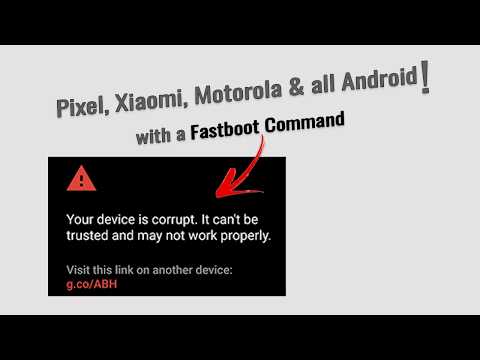
Click the image above to watch the step-by-step tutorial.
Additional Considerations
- Data Backup: Before performing any system-level operations, ensure that your data is backed up to prevent potential loss.
- Persistent Issues: If the error persists after attempting this fix, consider reflashing the stock firmware or seeking professional assistance.
By following these steps, you can effectively resolve the "Your device is corrupt" error and restore your device to normal functionality.
✅ Stay Connected & Support My Work: 📺 Subscribe to my YouTube Channel: https://www.youtube.com/@Learn_Mobile_Software 📢 Join My Telegram Group: T.me/learnmobilesoftware 💼 Hire Me on Fiverr: Fiverr.com/am19x ☕ Support Me – Buy Me a Coffee: https://buymeacoffee.com/am19x 🐦 Follow Me on X (Twitter): X.com/am19z


Comments
Post a Comment